Monitors defined paths for changes based on user defined metadata
FileMonitor
Added LogUser parameter
Added EventTriggers
FileTail
Added HistoryDays and HistoryRemoveEmptyDirectories parameters
Heartbeat
Added LogsError reporting
Logging
Add SIDFields parameter
LogRouting
Added ADHarvest as a way to define network location IP ranges
Added RELP protocol support
Logs
Added support for XPath event log query definitions
RegistryMonitor
Added SID resolution for HKEY_USER definitions
Added Enable parameter for hive subitems
SessionMonitor
Added GroupSIDs parameter – replaces PKINIT field
Added UserNameHint field
ServiceMonitor
Added Security field based on registry data
What’s Changed?
FileMetadata
ImpHash calculations now ignore empty function names
FileTail
Deprecated IncludeSubdirectories. See Depth.
Filter supports multiple values and regular expressions
LogRouting
Where possible, BufferedStream is now used
Logs
Event logs that are null when received are counted as errors
TaskMonitor
Added Task Trigger XML to log
WLS Records
All control characters are now sanitized from field names and values
Fixes!
ARP/DNS
Fixed updating interval when changed while running
Audio
Fixed being enabled when disabled if FullReportInterval was set
CommandMonitor
Added extra checks when scanning memory for history structures to prevent errors
FileMetadata
Fixed quoted path loop bug
FileTail
BufferSize set as expected
Ensure file position is set to 0 on creation
Improved file position tracking
Reading multiple %USERPROFILE% settings
Setting CharSize
LNK
Fixed string decoding
Updated Enums and reporting of unknown values
LogFormat
Fixed appending HMAC
RemoteConfiguration
Fixed requiring rules.xml when not needed
ServiceMonitor
Fixed reporting at Interval
If you’d like licensing or other information about WLS, send me a note via the contact form. WLS is currently available to US entities, but does require a signed license agreement.
On WIndows XP, each cmd.exe process has it’s history stored in csrss.exe, which you can see using Process Explorer or Process Hacker:
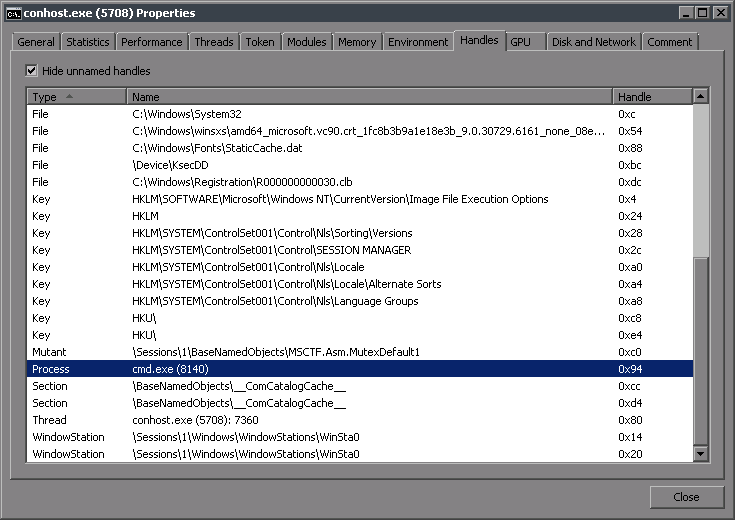
On Windows Vista+, each cmd.exe process has it’s own conhost.exe:
The only correlation (that I could find) between the cmd.exe process and the process that holds it’s command history, is that csrss.exe / conhost.exe has an open handle to the associated cmd.exe process.
Finding the handle
NtQuerySystemInformation is used to obtain a list of handle entries which contain: OwnerPID, ObjectType, HandleFlags, ObjectPointer, and AccessMask. Each entry is checked for an ObjectType of Process, an OwnerPID belonging to csrss.exe / conhost.exe and a HandleValue that references a cmd.exe process. The HandleValue will be used to correlate this entry with a command history structure.
Finding the history structure
Scanning for the command history structure in memory involves searching for a known value, typically the maximum command history, then checking if the data surrounding it matches the structure definition. Invariably there will be false positives which can mostly be weeded out by value checking the first four values in the structure, and that the pointer in the structure points to it’s start address. This structure also contains the process handle value found in the handle entry above.
Address
Description
x86
x64
0x00
0x00
Command Count (0 – Max)
0x02
0x02
Last Added (0 – Max)
0x04
0x04
Last Displayed (0 – Max)
0x06
0x06
First Command (0 – Max)
0x08
0x08
Max History
0x0C
0x10
Virtual Address / Handle
0x10
0x18
Pointer to this structure @ 0x00
0x14
0x20
Pointer to this structure @ 0x00
Now there is a 1:1 relationship between a cmd.exe instance and the command history in memory. Aside from the obvious benefit of knowing the ProcessId, scanning memory for new structures is no longer needed once each relationship is known, eliminating the most resource intensive part of the monitoring process.
Example!
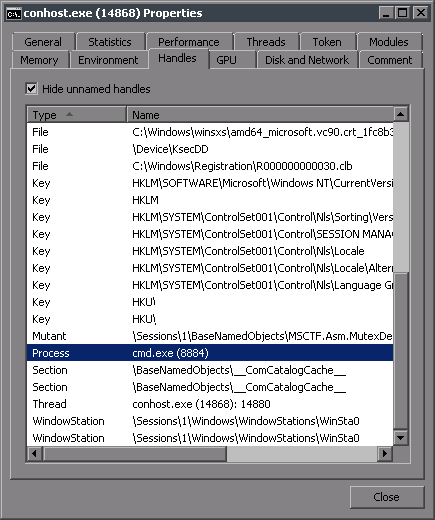
cmd.exe opened with a ProcessId of 8884 (0x22B4), conhost.exe 14868 (0x3A14) has it’s command history.
A handle entry scan returns an entry with an OwnerPID matching that of conhost.exe and an ObjectType of 0x07, which is a Process on Vista+. The cmd.exe PID is obtained by duplicating the handle in HandleValue and calling GetProcessId. Since OwnerPID equals 0x3A14 and the value returned from GetProcessId is 0x22B4, we have a match.
AccessMask: 0x1FFFFF
HandleFlags: 0x00
HandleValue: 0x94
ObjectPointer:&HFFFFFA8010AEB170
ObjectType: 0x07
OwnerPID: 0x3A14
A memory scan for the max history value (typically 0x32) finds the following structure, indicating 1 executed command, a virtual address of 0x94 which matches the HandleValue above, and two pointers that correctly identify the location in memory of the structure.
Address
Value
Description
0x00
0x01
CommandCount
0x01
0x00
CommandCount
0x02
0x00
LastAdded
0x03
0x00
LastAdded
0x04
0x00
LastDisplayed
0x05
0x00
LastDisplayed
0x06
0x00
FirstCommand
0x07
0x00
FirstCommand
0x08
0x32
MaxHistory
0x09
0x00
MaxHistory
0x0A
0xEF
0x0B
0xFF
0x0C
0xFC
0x0D
0xFC
0x0E
0xFC
0x0F
0xFF
0x10
0x94
VirtualAddress
0x11
0x00
VirtualAddress
0x12
0x00
VirtualAddress
0x13
0x00
VirtualAddress
0x14
0x00
VirtualAddress
0x15
0x00
VirtualAddress
0x16
0x00
VirtualAddress
0x17
0x00
VirtualAddress
0x18
0x78
StructurePointer1
0x19
0xE8
StructurePointer1
0x1A
0x16
StructurePointer1
0x1B
0x00
StructurePointer1
0x1C
0x00
StructurePointer1
0x1D
0x00
StructurePointer1
0x1E
0x00
StructurePointer1
0x1F
0x00
StructurePointer1
0x20
0x78
StructurePointer2
0x21
0xE8
StructurePointer2
0x22
0x16
StructurePointer2
0x23
0x00
StructurePointer2
0x24
0x00
StructurePointer2
0x25
0x00
StructurePointer2
0x26
0x00
StructurePointer2
0x27
0x00
StructurePointer2
The next section of the command history structure contains a list of pointers to simple structures containing the length of the command and the command itself in unicode.
0x28
&H70
Command1
0x29
&HDA
Command1
0x2A
&H16
Command1
0x2B
&H0
Command1
0x2C
&H0
Command1
0x2D
&H0
Command1
0x2E
&H0
Command1
0x2F
&H0
Command1
The structure found by following the pointer above correctly indicates a length of 14 and the unicode encoded command “echo hi”, which was the command executed.
WLS tracks the LastAdded and LastDisplayed values, and logs them when a change occurs, noting the Type in the log entry. Here I entered some more commands, arrowed up through history, then appended a character to a previous entry and executed it.
For more information on WLS, click “WLS Information” at the top, or here: WLS Information
If you’d like additional information about WLS, send me a note via the contact form. WLS is currently available to US entities, but does require a signed license agreement.
This is what I intend to be the first of a series of posts on configuring WLS. Configuration before installation is done via the initial.xml file, post-installation configuration changes are done via the registry; the names and basic structure remain the same.
The first and only required change to the initial.xml file is changing the “Network” section to match your environment. Also, only non-default settings need to be set; any missing settings will be set to defaults on start-up by WLS. The term Network was chosen instead of server since it defines a source network and where hosts that meet the definition should send their logs. Multiple networks can be defined, allowing for single configuration deployment across an enterprise and server redundancy in the event a server becomes unreachable for an extended period.
Global network settings
FailedSendTimeout: If ALL configured and qualified networks are out of range or connectivity attempts have failed, wait x seconds before retrying.
SendAsync: Use asynchronous sockets to send data
SocketTimeout: If no data has been sent for X seconds, close the socket
Per-instance network settings
The registry key name is how this will be referred to in the logs; name it appropriately.
AcceptInvalidCertificates: Allow expired, non matching domains, etc
ClientCertificate: Only applicable if UseSSL is enabled.
Blank: (default) No client certificate
UseLocal: Retrieve the client certificate from the local certifcate store
File path to use a certificate on disk
IPRange: The IP range that the local host’s IP address MUST fall within to use this “network”
Any – Any IPv4 or IPv6 address
0.0.0.0/0 – Any IPv4 address
::/0 – Any IPv6 address
Valid CIDR
Min-max IP range
LogFormat
syslog (default)
json
Priority: If the hosts IP address falls into multiple ranges, this determines which order to try and use them. If multiple same priority networks qualify, alphabetical order is used.
Protocol
TCP (default)
UDP
ServerNameOrIP: The host name or ip address of the destination server
ServerPort: The port on the destination server
UseSSL: Use SSL when sending logs
Examples!
Example 1
I run a local Splunk instance for testing and want my logs sent to it regardless of my IP address. I’ll set the IPRange to “Any” to allow any IPv4 or IPv6 source range and define the local server configuration. That’s it, all other values are defaults.
I have a work laptop that when used internally, should log directly to the log server without encryption; if it’s taken off-network, it should use an externally visible log server with SSL.
Note: If the laptop obtains an IP in the range defined by “Inside” while off the work network, it will not send data unless the server is available and a connection succeeds; when that fails, it will use the next range – “Outside”.
WLS can also log the following information to your log server:
Certificates
Devices
Drives
File system changes – including file metadata
Listening and connected ports, with associated process information
Loaded modules – including file metadata
Mutexes, semaphores, and other Windows objects
Named pipes
Optical media used
Performance counters
Registry changes
WMI information
I’ll cover the details of each of these features and configuration examples in upcoming posts, as well as provide example Splunk searches I use for day-to-day operations.
If you’d like more information on WLS, send me a note via the contact form. WLS is currently available to US entities, but does require a signed license agreement.



 digirati82