Monitors defined paths for changes based on user defined metadata
FileMonitor
Added LogUser parameter
Added EventTriggers
FileTail
Added HistoryDays and HistoryRemoveEmptyDirectories parameters
Heartbeat
Added LogsError reporting
Logging
Add SIDFields parameter
LogRouting
Added ADHarvest as a way to define network location IP ranges
Added RELP protocol support
Logs
Added support for XPath event log query definitions
RegistryMonitor
Added SID resolution for HKEY_USER definitions
Added Enable parameter for hive subitems
SessionMonitor
Added GroupSIDs parameter – replaces PKINIT field
Added UserNameHint field
ServiceMonitor
Added Security field based on registry data
What’s Changed?
FileMetadata
ImpHash calculations now ignore empty function names
FileTail
Deprecated IncludeSubdirectories. See Depth.
Filter supports multiple values and regular expressions
LogRouting
Where possible, BufferedStream is now used
Logs
Event logs that are null when received are counted as errors
TaskMonitor
Added Task Trigger XML to log
WLS Records
All control characters are now sanitized from field names and values
Fixes!
ARP/DNS
Fixed updating interval when changed while running
Audio
Fixed being enabled when disabled if FullReportInterval was set
CommandMonitor
Added extra checks when scanning memory for history structures to prevent errors
FileMetadata
Fixed quoted path loop bug
FileTail
BufferSize set as expected
Ensure file position is set to 0 on creation
Improved file position tracking
Reading multiple %USERPROFILE% settings
Setting CharSize
LNK
Fixed string decoding
Updated Enums and reporting of unknown values
LogFormat
Fixed appending HMAC
RemoteConfiguration
Fixed requiring rules.xml when not needed
ServiceMonitor
Fixed reporting at Interval
If you’d like licensing or other information about WLS, send me a note via the contact form. WLS is currently available to US entities, but does require a signed license agreement.
WLS is a Windows service that reads, formats, and sends logs to a log receiver such as a SIEM. Add PE metadata to any logs with a file reference. Customize, filter, and format to meet your requirements. Route logs based on network location, fully cached. Analysis of this data can help identify anomalous or malicious activity, as well as provide context for user and system behavior.
Overview
WLS includes the following capabilities:
Augment process creation events with user defined metadata including hashes and PE information
Remote configuration to allow for secure changes to the WLS configuration
Route logs to one or more servers (TCP/UDP/HTTP(S)/RELP) based on the current host network configuration in customizable formats (RFC3164, RFC5424, JSON, Splunk HEC, etc.)
Splunk dashboards shown are provided as-is with a WLS license.
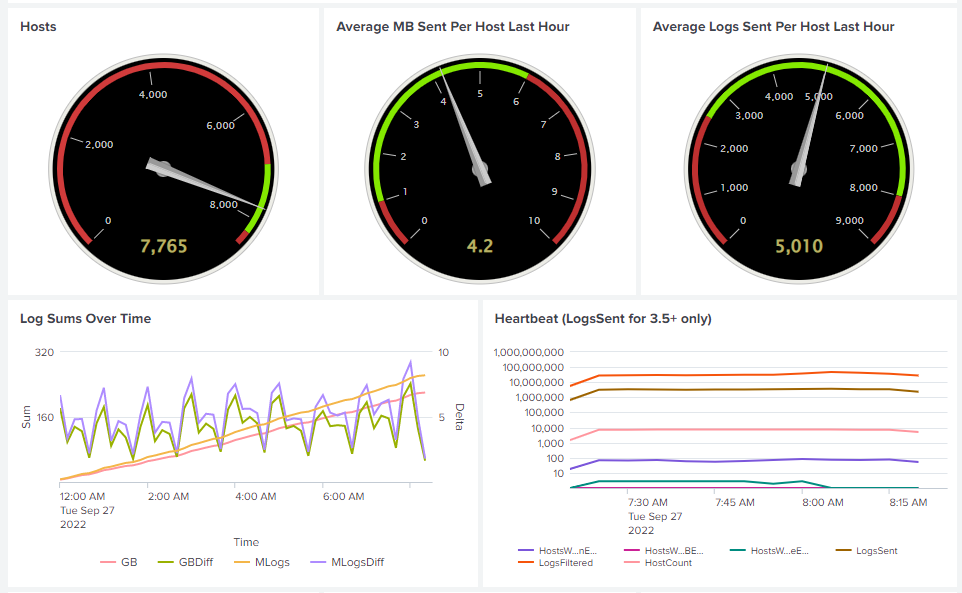
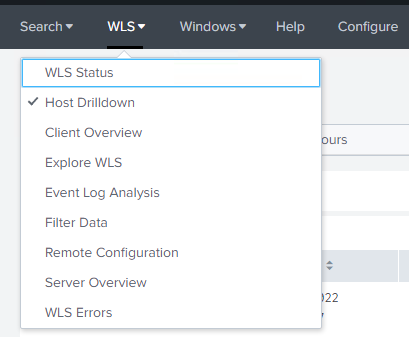
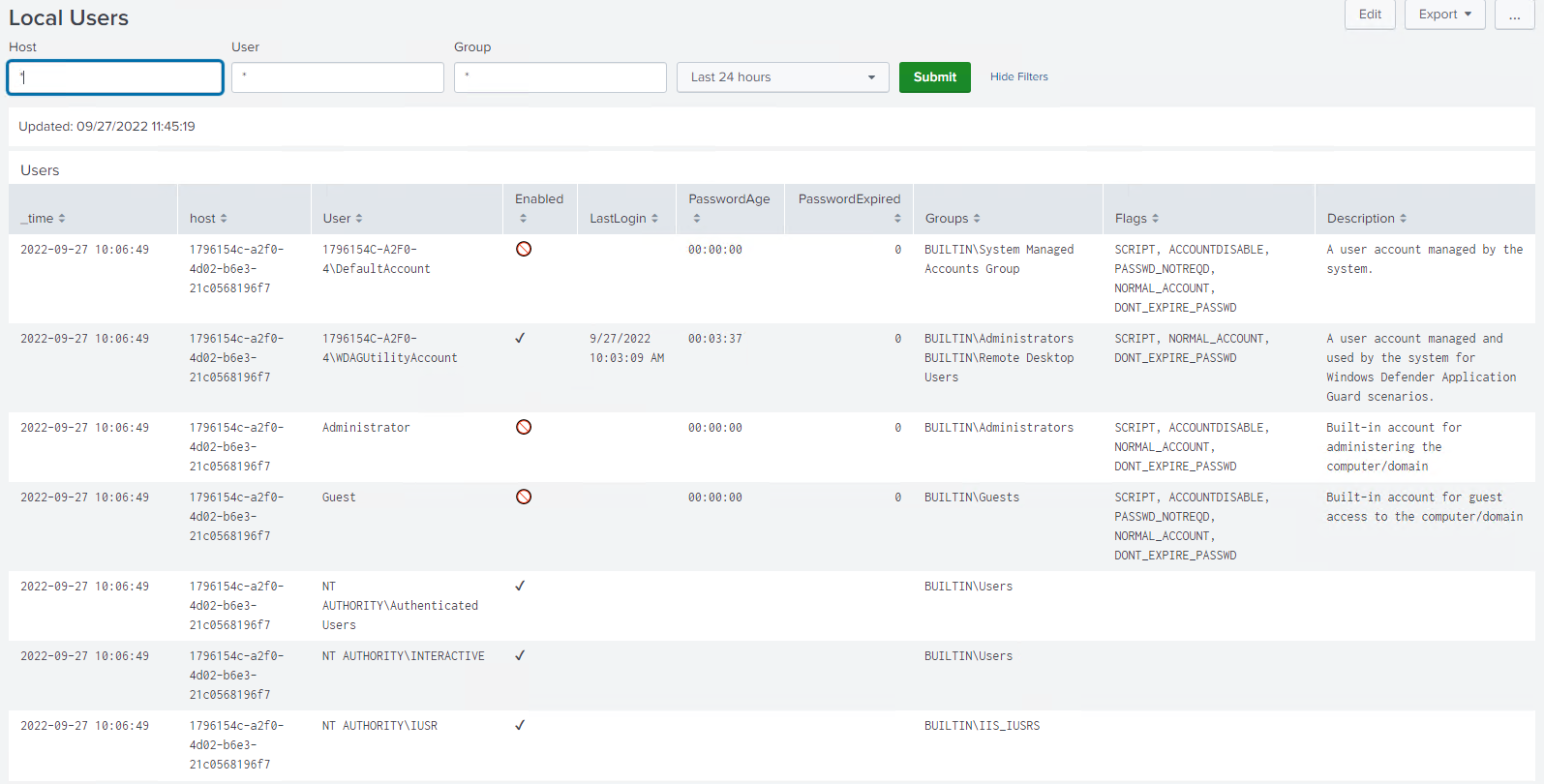
Overall performanceHost performanceDashboards for WLS monitoringDashboards to analyze all WLS reported dataLocal user analysisSession activity, including authentication methodSetup for index, logtypes, HMAC key, and alert email addresses
Requirements
WLS requires .NET 4.0+ client or full and is compatible with Windows XP/Server 2003 – Windows 11/Server 2022. Requires < 5MB for initial installation, and up to the user-defined on-disk quota for the caching DB when the log server is unavailable.
WLS includes the required SQLite libraries and a Software Bill of Materials (SBOM) to validate the provided installation files and dependencies and the executable is signed and timestamped.
Usage
Install with colocated configuration file: msiexec.exe /i setup.msi /qn
Install with HTTPS remote configuration file: msiexec.exe /i setup.msi /RemoteURL="https://server.domain/WLS
Install with UNC remote configuration file: msiexec.exe /i /setup.msi /RemoteURL="\\server.domain\WLS"
Uninstall: msiexec.exe /x setup.msi /qn
Run in debug mode (from elevated command prompt): wls.exe /i /e /debugmode
Configuration
All settings can be user-defined to meet expectations for the environment. The manual included with a license contains all definitions, options, and examples for each setting.
WLS configuration is defined by an XML file that is generated by the provided configuration utility and/or edited manually. Only non-default settings need to be specified. The XML file can then be signed by a system generated signature to guarantee integrity of the XML file, or by an existing certificate to guarantee integrity and verify the signature is trusted.
Remote configuration is done by specifying a path to a rules file that contains host conditions to map systems to the appropriate configuration(s). A remote configuration rule editor is provided.
Example Configurations
All default settings, only watch the Application, Security, and System logs
If you’d like licensing or other information about WLS, send me a note via the contact form. WLS is currently available to US entities, but does require a signed license agreement.
WLS 3.7 introduces the ability to read settings from a remote location, optionally based on host attributes. This provides a dynamic way to update settings on hosts without using GPO, and the ability to deploy WLS without a base configuration file (initial.xml), separating the deployment and configuration for easier management in complex environments.
Remote Location
The remote location can be a file share or web site. It is recommended that a file share have proper ACLs applied, specified by FQDN, and DNSSEC enabled. If a web site is used, HTTPS is recommended and must have a valid certificate.
The rules.xml and any qualifying XML settings files are read and cached on the host. At the specified Interval, WLS will check for changes based on the specified UpdateCheckType. File share paths default to checking the Last Modified Date metadata. Web site paths default to checking the Last Modified Date and ETag metadata returned from a HEAD request. UpdateCheckType can be configured to require a full content comparison at each interval. If the metadata has changed a full content comparison is done and settings are only applied if the content has changed.
If the system is unable to reach the remote configuration path, the cached rules.xml will be evaluated and qualifying cached XML settings will be used as the original paths are cached as well.
Rules
The rules.xml must be located at the root of the remote location. Each rule specifies one or more conditions and a URL to read settings from for hosts that match all conditions. The URL can be relative to the remote location or an absolute path to another location. URLs evaluated from the rules.xml can contain XML settings files by any name. A rule can be set to stop processing further rules by setting continue to false.
Conditions
A condition can either be a “host” or “wmi” condition. A host condition can be the hostname, OU, DN, or any environmental variable for the “Local System” user. A WMI condition can use any WMI namespace and class available to “Local System”.
Each condition can specify one or more fields. Each field can specify zero or more values. Each value can be an exact match, wildcard (*, #, ?), or regular expression. For fields where more than one value may be returned, each value is compared against the values specified. If no value is specified all values will be used when evaluating tokens.
Tokens are optional and can be specified for one or more fields. The token can then be used as part of the URL to dynamically change the location or file name of the XML settings file to be read if all conditions are met.
Example rules.xml
The example below shows reading settings for a Dell computer in an OU named “Windows 10”. The URL is relative and based on the tokens from the conditions.
<WLS>
  <rules>
    <rule name="Dell in Win10 OU">
      <!--Just an example. URL is a relative path to RemoteConfigurationURL-->
      <host>
        <!--Example condition comment-->
        <fields>
          <field>
            <!--Example field comment-->
            <name>OU</name>
            <!--Example value comment-->
            <value>Windows 10</value>
            <token>ou</token>
          </field>
        </fields>
      </host>
      <wmi>
        <namespace>root\cimv2</namespace>
        <class>Win32_ComputerSystem</class>
        <!--Second condition comment-->
        <fields>
          <field>
            <!--wmi field comment-->
            <name>Manufacturer</name>
            <value>Dell*</value>
            <token>mfr</token>
          </field>
        </fields>
      </wmi>
      <url>$ou$\$mfr$\settings.xml</url>
    </rule>
  </rules>
</WLS>
This example shows reading settings for any manufacturer in the “Windows 10” OU. No value needs to be specified if all values for a field will be used. Failed attempted paths will be logged based on the LogMissingFiles setting.
<WLS>
  <rules>
    <rule name="Dell in Win10 OU">
      <!--Just an example. URL is a relative path to RemoteConfigurationURL-->
      <host>
        <!--Example condition comment-->
        <fields>
          <field>
            <!--Example field comment-->
            <name>OU</name>
            <!--Example value comment-->
            <value>Windows 10</value>
            <token>ou</token>
          </field>
        </fields>
      </host>
      <wmi>
        <namespace>root\cimv2</namespace>
        <class>Win32_ComputerSystem</class>
        <!--Second condition comment-->
        <fields>
          <field>
            <!--wmi field comment-->
            <name>Manufacturer</name>
            <token>mfr</token>
          </field>
        </fields>
      </wmi>
      <url>$ou$\$mfr$\settings.xml</url>
    </rule>
  </rules>
</WLS>
Settings
A settings.xml may be located at the root of the remote location. If present it will be applied to all hosts. XML settings file content is the same format as the initial.xml and the WLS Configuration Editor should be used to generate them. Settings files are processed in the order they appear in the rules.xml. Settings are overlaid such that the last setting will overwrite a previous setting.
XML Integrity and Verification
XML files should be digitally signed to ensure content has not changed. XML files can be signed with a certificate to ensure the content integrity and that it was signed by a trusted entity. The tooling to sign and verify is included with the Remote Configuration Rule Editor and the Configuration Editor.
Signing
From either tool, choose File->Sign XML. A prompt will appear asking if you have a certificate, choosing Yes will show the available certificates or let you choose one from disk and ask for the PIN/password if needed, choosing No will use a system generated certificate. Each tool can also have a default certificate chosen to avoid being prompted.
A system generated certificate will verify the content only. A user specified certificate will verify content and that the signer is trusted by the host. After signing a verification is performed and the results displayed to the user.
A signature block will be added to the end of the XML file. Any previous signature will be removed.
WLS can be deployed without an initial.xml by specifying a RemoteURL as a command line parameter to msiexec.exe. The rules.xml must be signed when specified at installation.
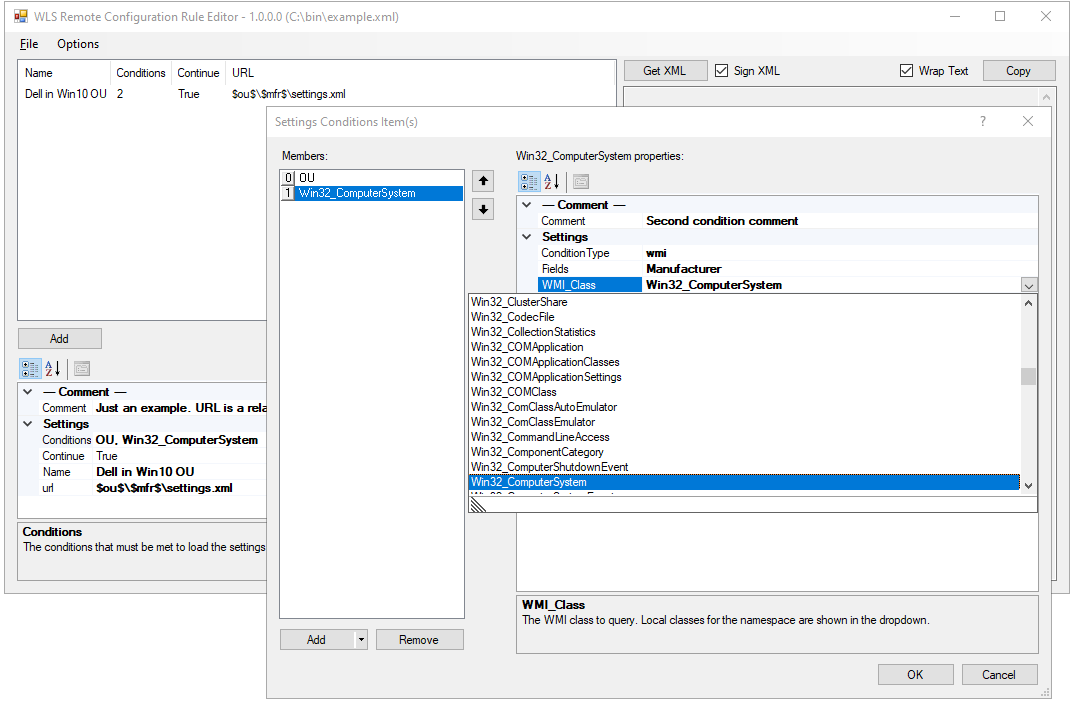
The Remote Configuration Rule Editor is provided to help with creating the rules.xml file. XML is the native format used and it can be edited without the use of the editor. If the file is signed, editing the file will invalidate the signature until it is resigned for the new content. Rule names and any comments are for user reference only and are not used by WLS.
Rules are added and removed using the appropriate buttons. Rules can be reordered by dragging and dropping.
Where possible the editor will show available field names, values, WMI namespaces, and WMI classes. Field names, namespaces, and classes are free-form text fields and can specify values not available on the local system that may be available on other systems.
Available “host” fieldsAvailable WMI classesAvailable WMI fields for the namespace and class
Logs and Dashboard
All relevant Remote Configuration activity is logged and a Splunk dashboard is provided in the WLS App for Splunk.
For more information on WLS, click “WLS Information” at the top, or here: WLS Information
If you’d like licensing or other information about WLS, send me a note via the contact form. WLS is currently available to US entities, but does require a signed license agreement.
Bro does awesome things with network data. One of those things is performing an analysis of files on the wire, including hashing. WLS does hashing of executed files and loaded DLLs, and tracks each hash that has been seen on the host, setting “NewHash=True” for the first instance.
I wanted to track PE files that have been seen on the wire (downloaded) then executed for the first time with some basic statistics. The resulting Splunk search looks for all Bro file analysis logs of PE files that contain an MD5, matches that with WLS logs containing the same MD5, does a distinct host count, and reports the unique hash data with the distinct host count. If you have Bro monitoring internal and external traffic you’ll also see things such as managed anti-virus updates or patches. The WLS file metadata optionally includes the Zone field, which can come in handy for differentiating the source of the files.
Internet Explorer Zone Number Mapping
Value
Setting
0
My Computer
1
Local Intranet Zone
2
Trusted sites Zone
3
Internet Zone
4
Restricted Sites Zone
Here’s the current Splunk search I’m using for alerting:
`wlslogs` NewHash=True [ search sourcetype=bro_files PE MD5 | dedup md5 | rename md5 as MD5 | fields MD5] | eval CallingProcess=coalesce(Process,CreatorProcessName) | eventstats dc(host) as hostCount by MD5 | dedup MD5 | table hostCount, CallingProcess, BaseFileName, CompanyName, InternalName, FileDescription, Signed, FileVersion, ProductVersion, Zone | sort -hostCount
`wlslogs`
A macro that limits the logs to indexes where WLS data is contained
NewHash=True
Only logs where NewHash is set to True
[ search sourcetype=bro_files PE MD5 | dedup md5 | rename md5 as MD5 | fields MD5]
sourcetype=bro_files
Only “bro_files” data
PE MD5
Bro logs containing the keywords “PE” and “MD5”
dedup md5
Remove duplicate hashes
rename md5 as MD5
Splunk is case-sensitive for field names, so rename the Bro field to what WLS uses
The fields differ slightly in the logs where we might find an MD5 (new process vs. loading DLL); this will return the first non-null of Process and CreatorProcessName
eventstats dc(host) as hostCount by MD5
Count the distinct number of hosts where this MD5 has been seen
For more information on WLS, click “WLS Information” at the top, or here: WLS Information
If you’d like additional information about WLS, send me a note via the contact form. WLS is currently available to US entities, but does require a signed license agreement.






 digirati82