Basic WLS Installation Video
Leave a reply
If you are running WLS with ModuleMonitor enabled, you already have logs of all loaded DLLs.
Simply run the following search:
WLS_ModuleMonitor “openssl” FileVersion=”1.0.1*” NOT FileVersion=”1.0.1g”
Results will look similar to:
2014-04-24T11:28:38-05:00 [host] WLS_ModuleMonitor: LogType=”WindowsEventLog”, BaseFileName=”ssleay32.dll”, ChangeType=”Added”, CompanyName=”The OpenSSL Project, http://www.openssl.org/”, FileDescription=”OpenSSL Shared Library”, FileName=”C:\Program Files\MakerBot\MakerWare\ssleay32.dll”, FileVersion=”1.0.1e”, InternalName=”ssleay32″, Language=”English (United States)”, Length=”343040″, MD5=”A49B52FB216AD1524C902A41A433A1E1″, Process=”makerware”, ProductVersion=”1.0.1e”, SHA1=”F21CBCC5F291C1D841581FDBBBF854B315D71248″, WLSKey=”35505″, Zone=”0″
For more information on WLS, click “WLS Information” at the top, or here: WLS Information
If you’d like additional information about WLS, send me a note via the contact form. WLS is currently available to US entities, but does require a signed license agreement.
An alternate DB location can now be specified.
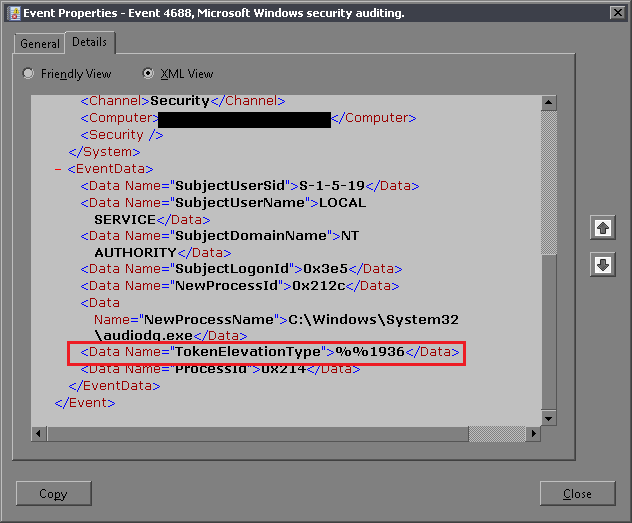
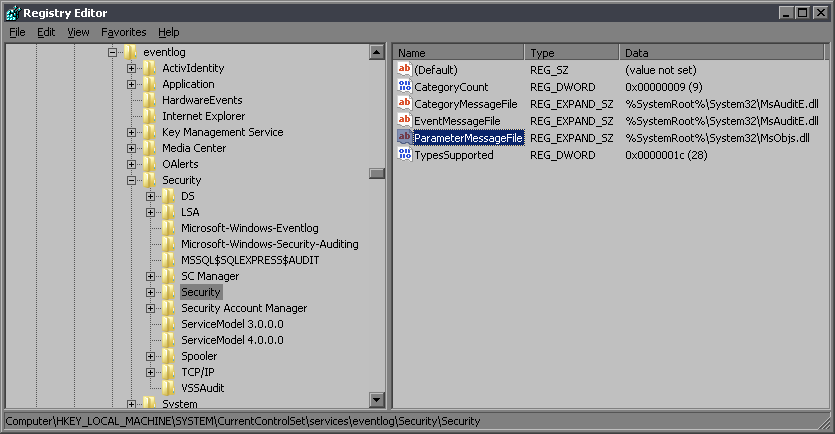
Some Vista+ logs contain values that start with %%. These can now be optionally decoded and added as a field or replace the %% values.
A minimum disk space may now be specified, and if the disk space falls below the threshold, WLS will stop queuing logs and send a notification directly to the syslog server. Normal behavior will resume when disk space returns above the threshold.
Logging of network interfaces on start-up and after a network change now includes more data about each adapter.
Optionally now include the remaining log data from XP logs after all replacement strings have been parsed.
When a user is added or removed from a group, the log did not always contain the user name. Now when a log contains MemberSid but not MemberName, WLS will fill-in MemberName.
Disabling workstation IP resolution for logs containing WorkstationName is now an option.
CommandMonitor now includes the user name associated with each command.
When debugging interactively, output now includes greater detail.
JSON output has been improved.
Faster parsers for XP and Vista+. Higher concurrency log processing through the caching database.
SessionMonitor now caches information where applicable to maintain user tracking.
For more information on WLS, click “WLS Information” at the top, or here: WLS Information
If you’d like additional information about WLS, send me a note via the contact form. WLS is currently available to US entities, but does require a signed license agreement.
As detailed in a previous post, commands entered at the command prompt are now monitored and reported along with the cmd.exe process ID. This includes tracking the last command added and last command displayed; if command processes exist when WLS is started, all existing commands will be logged, then as they change.
Monitor removable drive file system changes; monitor fixed disk file system changes by interface type (1394, IDE, SCSI, USB); optionally log the interactive user
License information must now be entered for WLS to run.
When enabled, Event Logs generated while WLS was not running (OS startup, shutdown, etc.) will be processed on WLS startup. On the first run, no logs are backfilled.
When running as a service as LocalSystem (normal operation), user session changes will be logged. The logs will be tagged with WLS_SessionMonitor and include the session ID and associated user. This includes ConsoleConnect, ConsoleDisconnect, RemoteConnect, RemoteDisconnect, SessionLock, SessionLogoff, SessionLogon, SessionRemoteControl, and SessionUnlock.
Signed binary detection by catalog. Previously files were only checked for an embedded signature; now if a file’s hash is included in a signature catalog, the Signed flag will be set to Catalog. Signed flag options are now Catalog, False, True.
For more information on WLS, click “WLS Information” at the top, or here: WLS Information
If you’d like additional information about WLS, send me a note via the contact form. WLS is currently available to US entities, but does require a signed license agreement.
A new feature coming to WLS is the ability to monitor commands executed at the command prompt. Using methods similar to Volatility’s cmdhistory.py and Extracting Windows Cmd Line Details from Physical Memory (pdf), commands and their associated cmd.exe PID can now be logged in near real-time.
Update: Here’s a video showing the results:
On WIndows XP, each cmd.exe process has it’s history stored in csrss.exe, which you can see using Process Explorer or Process Hacker:

On Windows Vista+, each cmd.exe process has it’s own conhost.exe:
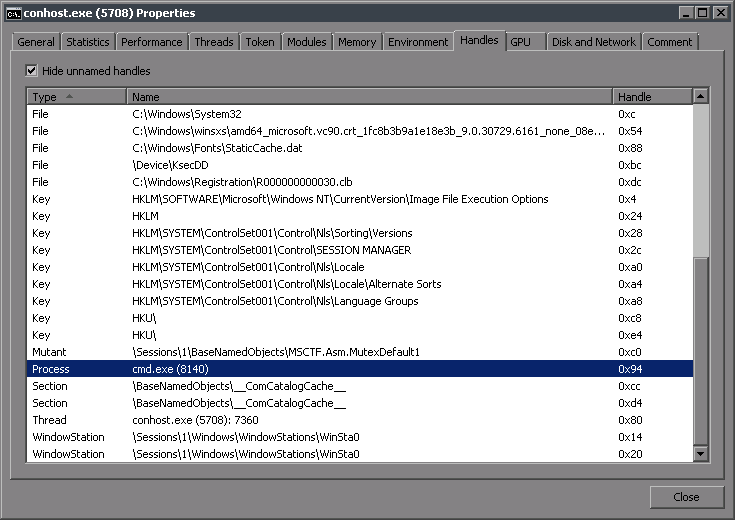
The only correlation (that I could find) between the cmd.exe process and the process that holds it’s command history, is that csrss.exe / conhost.exe has an open handle to the associated cmd.exe process.
NtQuerySystemInformation is used to obtain a list of handle entries which contain: OwnerPID, ObjectType, HandleFlags, ObjectPointer, and AccessMask. Each entry is checked for an ObjectType of Process, an OwnerPID belonging to csrss.exe / conhost.exe and a HandleValue that references a cmd.exe process. The HandleValue will be used to correlate this entry with a command history structure.
Scanning for the command history structure in memory involves searching for a known value, typically the maximum command history, then checking if the data surrounding it matches the structure definition. Invariably there will be false positives which can mostly be weeded out by value checking the first four values in the structure, and that the pointer in the structure points to it’s start address. This structure also contains the process handle value found in the handle entry above.
| Address | Description | |
| x86 | x64 | |
| 0x00 | 0x00 | Command Count (0 – Max) |
| 0x02 | 0x02 | Last Added (0 – Max) |
| 0x04 | 0x04 | Last Displayed (0 – Max) |
| 0x06 | 0x06 | First Command (0 – Max) |
| 0x08 | 0x08 | Max History |
| 0x0C | 0x10 | Virtual Address / Handle |
| 0x10 | 0x18 | Pointer to this structure @ 0x00 |
| 0x14 | 0x20 | Pointer to this structure @ 0x00 |
Now there is a 1:1 relationship between a cmd.exe instance and the command history in memory. Aside from the obvious benefit of knowing the ProcessId, scanning memory for new structures is no longer needed once each relationship is known, eliminating the most resource intensive part of the monitoring process.
cmd.exe opened with a ProcessId of 8884 (0x22B4), conhost.exe 14868 (0x3A14) has it’s command history.

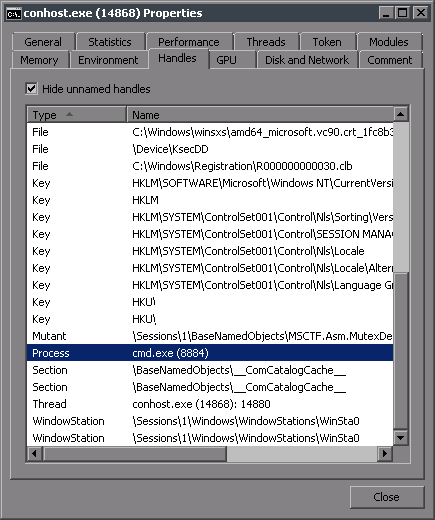
A handle entry scan returns an entry with an OwnerPID matching that of conhost.exe and an ObjectType of 0x07, which is a Process on Vista+. The cmd.exe PID is obtained by duplicating the handle in HandleValue and calling GetProcessId. Since OwnerPID equals 0x3A14 and the value returned from GetProcessId is 0x22B4, we have a match.
| AccessMask: 0x1FFFFF |
| HandleFlags: 0x00 |
| HandleValue: 0x94 |
| ObjectPointer:&HFFFFFA8010AEB170 |
| ObjectType: 0x07 |
| OwnerPID: 0x3A14 |
A memory scan for the max history value (typically 0x32) finds the following structure, indicating 1 executed command, a virtual address of 0x94 which matches the HandleValue above, and two pointers that correctly identify the location in memory of the structure.
| Address | Value | Description |
| 0x00 | 0x01 | CommandCount |
| 0x01 | 0x00 | CommandCount |
| 0x02 | 0x00 | LastAdded |
| 0x03 | 0x00 | LastAdded |
| 0x04 | 0x00 | LastDisplayed |
| 0x05 | 0x00 | LastDisplayed |
| 0x06 | 0x00 | FirstCommand |
| 0x07 | 0x00 | FirstCommand |
| 0x08 | 0x32 | MaxHistory |
| 0x09 | 0x00 | MaxHistory |
| 0x0A | 0xEF | |
| 0x0B | 0xFF | |
| 0x0C | 0xFC | |
| 0x0D | 0xFC | |
| 0x0E | 0xFC | |
| 0x0F | 0xFF | |
| 0x10 | 0x94 | VirtualAddress |
| 0x11 | 0x00 | VirtualAddress |
| 0x12 | 0x00 | VirtualAddress |
| 0x13 | 0x00 | VirtualAddress |
| 0x14 | 0x00 | VirtualAddress |
| 0x15 | 0x00 | VirtualAddress |
| 0x16 | 0x00 | VirtualAddress |
| 0x17 | 0x00 | VirtualAddress |
| 0x18 | 0x78 | StructurePointer1 |
| 0x19 | 0xE8 | StructurePointer1 |
| 0x1A | 0x16 | StructurePointer1 |
| 0x1B | 0x00 | StructurePointer1 |
| 0x1C | 0x00 | StructurePointer1 |
| 0x1D | 0x00 | StructurePointer1 |
| 0x1E | 0x00 | StructurePointer1 |
| 0x1F | 0x00 | StructurePointer1 |
| 0x20 | 0x78 | StructurePointer2 |
| 0x21 | 0xE8 | StructurePointer2 |
| 0x22 | 0x16 | StructurePointer2 |
| 0x23 | 0x00 | StructurePointer2 |
| 0x24 | 0x00 | StructurePointer2 |
| 0x25 | 0x00 | StructurePointer2 |
| 0x26 | 0x00 | StructurePointer2 |
| 0x27 | 0x00 | StructurePointer2 |
The next section of the command history structure contains a list of pointers to simple structures containing the length of the command and the command itself in unicode.
| 0x28 | &H70 | Command1 |
| 0x29 | &HDA | Command1 |
| 0x2A | &H16 | Command1 |
| 0x2B | &H0 | Command1 |
| 0x2C | &H0 | Command1 |
| 0x2D | &H0 | Command1 |
| 0x2E | &H0 | Command1 |
| 0x2F | &H0 | Command1 |
The structure found by following the pointer above correctly indicates a length of 14 and the unicode encoded command “echo hi”, which was the command executed.
| Address | Value | |
| 0x00 | 0x0E | 14 |
| 0x01 | 0X00 | |
| 0x02 | &H65 | e |
| 0x03 | &H00 | |
| 0x04 | &H63 | c |
| 0x05 | &H00 | |
| 0x06 | &H68 | h |
| 0x07 | &H00 | |
| 0x08 | &H6F | o |
| 0x09 | &H00 | |
| 0x0A | &H20 | |
| 0x0B | &H00 | |
| 0x0C | &H68 | h |
| 0x0D | &H00 | |
| 0x0E | &H69 | i |
| 0x0F | &H00 |

The resulting log from WLS looks like this:
2013-10-27T12:28:43-05:00 [pc] WLS_CommandMonitor: LogType=”WLS”, Command=”echo hi”, ProcessId=”0x22b4″, Type=”Executed”
WLS tracks the LastAdded and LastDisplayed values, and logs them when a change occurs, noting the Type in the log entry. Here I entered some more commands, arrowed up through history, then appended a character to a previous entry and executed it.
2013-10-27T13:28:30-05:00 [pc] WLS_CommandMonitor: LogType=”WLS”, Command=”echo hi2″, ProcessId=”0x22b4″, Type=”Executed”
2013-10-27T13:28:32-05:00 [pc] WLS_CommandMonitor: LogType=”WLS”, Command=”echo hi3″, ProcessId=”0x22b4″, Type=”Executed”
2013-10-27T13:28:33-05:00 [pc] WLS_CommandMonitor: LogType=”WLS”, Command=”echo hi2″, ProcessId=”0x22b4″, Type=”Displayed”
2013-10-27T13:28:37-05:00 [pc] WLS_CommandMonitor: LogType=”WLS”, Command=”echo hi24″, ProcessId=”0x22b4″, Type=”Executed”
For more information on WLS, click “WLS Information” at the top, or here: WLS Information
If you’d like additional information about WLS, send me a note via the contact form. WLS is currently available to US entities, but does require a signed license agreement.
WLS provides the option to monitor plug and play devices. When enabled, a log will be generated for each state change containing the current state and detailed device information.
If WLS is already installed, device monitoring can be enabled by changing the registry value at HKLM\Software\KCP\WLS\Config\DeviceMonitor\Enabled from 0 to 1.
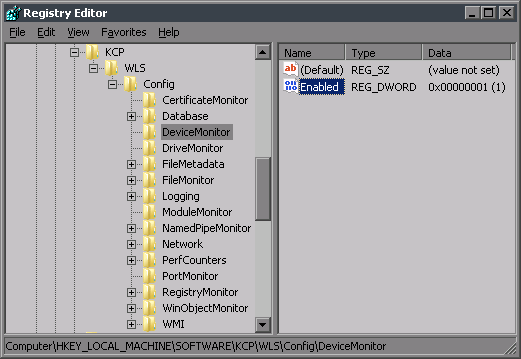
If WLS hasn’t been installed, adding (or changing) the DeviceMonitor section and setting Enabled to 1 in the initial.xml will enable this feature when WLS is installed.
<WLS>
 <Config>
  <DeviceMonitor>
   <Enabled>1</Enabled>
  </DeviceMonitor>
 </Config>
</WLS>
Once device monitoring is enabled, when a device state changes, entries like the following will appear in your logs. Each entry should include at least one key/value pair that contains a product id (PID), a vendor id (VID), and a serial number as well as another key/value pair that contains the Class, SubClass, and Protocol.
Sep 18 15:15:46 [host] WLS_DeviceMonitor: LogType=”WindowsEventLog”, Caption=”USB Mass Storage Device”, ChangeType=”Added”, ClassGuid=”{36fc9e60-c465-11cf-8056-444553540000}”, CompatibleID=”USB\Class_08&SubClass_06&Prot_50″, CompatibleID1=”USB\Class_08&SubClass_06″, CompatibleID2=”USB\Class_08″, ConfigManagerErrorCode=”0″, ConfigManagerUserConfig=”False”, CreationClassName=”Win32_PnPEntity”, Description=”USB Mass Storage Device”, DeviceID=”USB\VID_1043&PID_8012604261021070038″, HardwareID=”USB\VID_1043&PID_8012&REV_0100″, HardwareID1=”USB\VID_1043&PID_8012″, Manufacturer=”Compatible USB storage device”, Name=”USB Mass Storage Device”, PNPDeviceID=”USB\VID_1043&PID_8012604261021070038″, Service=”USBSTOR”, Status=”OK”, SystemCreationClassName=”Win32_ComputerSystem”, SystemName=”[host]”, TIME_CREATED=”130240089461584098″, WLSKey=”23559″
Sep 18 15:16:01 [host] WLS_DeviceMonitor: LogType=”WindowsEventLog”, Caption=”USB Mass Storage Device”, ChangeType=”Removed”, ClassGuid=”{36fc9e60-c465-11cf-8056-444553540000}”, CompatibleID=”USB\Class_08&SubClass_06&Prot_50″, CompatibleID1=”USB\Class_08&SubClass_06″, CompatibleID2=”USB\Class_08″, ConfigManagerErrorCode=”0″, ConfigManagerUserConfig=”False”, CreationClassName=”Win32_PnPEntity”, Description=”USB Mass Storage Device”, DeviceID=”USB\VID_1043&PID_8012604261021070038″, HardwareID=”USB\VID_1043&PID_8012&REV_0100″, HardwareID1=”USB\VID_1043&PID_8012″, Manufacturer=”Compatible USB storage device”, Name=”USB Mass Storage Device”, PNPDeviceID=”USB\VID_1043&PID_8012604261021070038″, Service=”USBSTOR”, Status=”OK”, SystemCreationClassName=”Win32_ComputerSystem”, SystemName=”[host]”, TIME_CREATED=”130240089617443014″, WLSKey=”23569″
If the device fails to load properly, the Status field will be set to Error instead of OK.
Sep 18 15:15:45 [host] WLS_DeviceMonitor: LogType=”WindowsEventLog”, Caption=”USB Mass Storage Device”, ChangeType=”Added”, ClassGuid=”{36fc9e60-c465-11cf-8056-444553540000}”, CompatibleID=”USB\Class_08&SubClass_06&Prot_50″, CompatibleID1=”USB\Class_08&SubClass_06″, CompatibleID2=”USB\Class_08″, ConfigManagerErrorCode=”0″, ConfigManagerUserConfig=”False”, CreationClassName=”Win32_PnPEntity”, Description=”USB Mass Storage Device”, DeviceID=”USB\VID_1043&PID_8012604261021070038″, HardwareID=”USB\VID_1043&PID_8012&REV_0100″, HardwareID1=”USB\VID_1043&PID_8012″, Manufacturer=”Compatible USB storage device”, Name=”USB Mass Storage Device”, PNPDeviceID=”USB\VID_1043&PID_8012604261021070038″, Service=”USBSTOR”, Status=”Error”, SystemCreationClassName=”Win32_ComputerSystem”, SystemName=”[host]”, TIME_CREATED=”130240089461584098″, WLSKey=”23558″
Splunk is great for combining data from multiple sources, and in this case, data will be added to decode VID, PID, Class, SubClass, and Protocol.
The best place (I’m aware of) to get VID and PID information is http://www.linux-usb.org/usb-ids.html. Download the usb.ids file, work some spreadsheet magic, and you have a nice csv file for a Splunk lookup table.
Getting the Class, SubClass, and Protocol information isn’t quite as straightforward; I started here: http://www.usb.org/developers/defined_class and generated a csv file for another Splunk lookup table. Luckily these don’t change as often as VID and PID information.
Add these csv files to Splunk by going to “Lookups” in the Splunk Manager page, then choosing “Add new” on the “Lookup table files” line.
Both lookup tables are available to download at the end of this post.
Now that lookup tables exist, the information to lookup needs to be extracted from the source logs. I created two macros, one to extract and lookup the hardware manufacturer and model, another to extract and lookup the class, subclass, and protocol. Both macros split a single field into parts, and lookup the individual parts. I assumed that a new PID may exist for an existing VID, and that the new PID may not be in the lookup table; so a double lookup is performed and the first non-null value is returned.
eval DeviceModelData=split(HardwareID,”\\”)
| eval USBModelData=split(mvindex(DeviceModelData,1),”&”)
| eval USBMfr=mvindex(USBModelData,0) | eval USBModel=mvindex(USBModelData,1)
| eval USBInterfaces=mvindex(USBModelData,2)
| lookup USBIDS Mfr as USBMfr Model as USBModel OUTPUT MfrName as USBMfrName ModelName as USBModelName
| lookup USBIDS Mfr as USBMfr OUTPUT MfrName as USBMfrName1
| eval USBMfrName=mvindex(coalesce(USBMfrName,USBMfrName1),0)
| eval USBMfrName=coalesce(USBMfrName,USBMfr)
| eval USBModelName=coalesce(USBModelName,USBModel)
eval DeviceData=split(CompatibleID,”\\”)
| eval USBData=split(mvindex(DeviceData,1),”&”)
| eval USBClass=mvindex(split(mvindex(USBData,0),”_”),1)
| strcat “Class_” USBClass USBClass
| eval USBSubClass=mvindex(USBData,1)
| eval USBProtocol=mvindex(USBData,2)
| lookup USBSpec Class as USBClass SubClass as USBSubClass Protocol as USBProtocol OUTPUT ProtocolDescription as ProtocolDescription2
| lookup USBSpec Class as USBClass SubClass as USBSubClass OUTPUT SubClassDescription as SubClassDescription1,ProtocolDescription as ProtocolDescription1
| lookup USBSpec Class as USBClass OUTPUT ClassDescription,SubClassDescription,ProtocolDescription
| eval ClassDescription=mvindex(ClassDescription,0)
| eval SubClassDescription=mvindex(coalesce(SubClassDescription1,SubClassDescription),0)
| eval ProtocolDescription=coalesce(ProtocolDescription2,ProtocolDescription1,ProtocolDescription)
| strcat ClassDescription ” ” SubClassDescription ” ” ProtocolDescription FullUSBDescription
With all the information combined, it’s time to make a dashboard. I created one that displays each class in it’s own titled section for readability. If the lookups are able to decode the VID, PID, SubClass, and Protocol, the decode is shown, otherwise the original undecoded value is shown.

When deployed enterprise-wide, logs now exist to uniquely track any plug and play hardware across all systems and users. The PID, VID, and serial number can be used to identify new and potentially unwanted devices. Combined with a process to issue hardware from a central location, the issuer can register the device and the end-user. This reduces the noise and false positive alerts, and provides user accountability to a specific device. A word of caution, I have seen serial numbers reused, in mass.
Here are the lookup tables I’m currently using, they may be out of date. They are renamed to .xls files so WordPress would let me upload them; rename to .csv after downloading.
Have other ideas for using the data WLS provides, or data you’d like to have logged? Let me know in the comments below or via the contact form.
For more information on WLS, click “WLS Information” at the top, or here: WLS Information
If you’d like additional information about WLS, send me a note via the contact form. WLS is currently available to US entities, but does require a signed license agreement.
I came across the WMI namespaces ROOT\SecurityCenter (XP) and ROOT\SecurityCenter2 (Vista+) while doing some research. These namespaces provide the product and state for AntiVirus, AntiSpyware (SecurityCenter2 only), and Firewall as recognized by Windows.
Since WLS provides a generic interface for WMI logging, I created the entries and updated the configuration. I have both XP and Windows 7 systems and each has it’s own namespace, so I’ll need two AntiVirus and Firewall entries, but only one AntiSpyware, and I’d like the information reported every 24 hours. The update to the configuration looks like this:
<WLS>
  <Config>
    <WMI>
      <AntiSpyware2>
        <Enabled>1</Enabled>
        <Class>AntiSpywareProduct</Class>
        <Interval>86400</Interval>
        <Namespace>ROOT\SecurityCenter2</Namespace>
      </AntiSpyware2>
      <AntiVirus>
        <Enabled>1</Enabled>
        <Class>AntiVirusProduct</Class>
        <Interval>86400</Interval>
        <Namespace>ROOT\SecurityCenter</Namespace>
      </AntiVirus>
      <AntiVirus2>
        <Enabled>1</Enabled>
        <Class>AntiVirusProduct</Class>
        <Interval>86400</Interval>
        <Namespace>ROOT\SecurityCenter2</Namespace>
      </AntiVirus2>
      <Firewall>
        <Enabled>1</Enabled>
        <Class>FirewallProduct</Class>
        <Interval>86400</Interval>
        <Namespace>ROOT\SecurityCenter</Namespace>
      </Firewall>
      <Firewall2>
        <Enabled>1</Enabled>
        <Class>FirewallProduct</Class>
        <Interval>86400</Interval>
        <Namespace>ROOT\SecurityCenter2</Namespace>
      </Firewall2>
    </WMI>
  </Config>
</WLS>
The ROOT\SecurityCenter namespace may be invalid on Vista+, and the ROOT\SecurityCenter2 namespace is invalid on XP; WLS will report the error once at startup and disable the offending WMI entry.
The logs generated after applying the configuration look like this:
2013-09-04T16:15:50-05:00 [host] WLS_WMI: LogType=”WindowsEventLog”, GroupID=”8″, MonitorName=”AntiSpyware2″, WLSKey=”3635″, displayName=”Symantec Endpoint Protection”, instanceGuid=”{D8BEB080-B73A-17E3-1B37-B6B462689202}”, pathToSignedProductExe=”C:\Program Files (x86)\Symantec\Symantec Endpoint Protection\WSCSavNotifier.exe”, pathToSignedReportingExe=”C:\Program Files (x86)\Symantec\Symantec Endpoint Protection\Rtvscan.exe”, productState=”462848″
2013-09-04T16:08:31-05:00 [host] WLS_WMI: LogType=”WindowsEventLog”, GroupID=”2″, MonitorName=”AntiVirus”, WLSKey=”2″, companyName=”Symantec Corporation”, displayName=”Symantec Endpoint Protection”, instanceGuid=”{FB06448E-52B8-493A-90F3-E43226D3305C}”, onAccessScanningEnabled=”True”, productUptoDate=”True”, versionNumber=”11.0.7200.155″
2013-09-04T16:15:50-05:00 [host] WLS_WMI: LogType=”WindowsEventLog”, GroupID=”10″, MonitorName=”AntiVirus2″, WLSKey=”3636″, displayName=”Symantec Endpoint Protection”, instanceGuid=”{63DF5164-9100-186D-2187-8DC619EFD8BF}”, pathToSignedProductExe=”C:\Program Files (x86)\Symantec\Symantec Endpoint Protection\WSCSavNotifier.exe”, pathToSignedReportingExe=”C:\Program Files (x86)\Symantec\Symantec Endpoint Protection\Rtvscan.exe”, productState=”462848″
2013-09-04T16:08:32-05:00 [host] WLS_WMI: LogType=”WindowsEventLog”, GroupID=”5″, MonitorName=”Firewall”, WLSKey=”5″, companyName=”Symantec Corporation.”, displayName=”Symantec Endpoint Protection”, enabled=”True”, instanceGuid=”{BE898FE3-CD0B-4014-85A9-03DB9923DDB6}”, versionNumber=”10.0″
2013-09-04T16:15:50-05:00 [host] WLS_WMI: LogType=”WindowsEventLog”, GroupID=”13″, MonitorName=”Firewall2″, WLSKey=”3638″, displayName=”Symantec Endpoint Protection”, instanceGuid=”{5BE4D041-DB6F-1935-0AD8-24F3E73C9FC4}”, pathToSignedProductExe=”C:\Program Files (x86)\Symantec\Symantec Endpoint Protection\Smc.exe”, pathToSignedReportingExe=”C:\Program Files (x86)\Symantec\Symantec Endpoint Protection\Smc.exe”, productState=”266256″
The information from ROOT\Security center has fields defined such as “displayName”, “enabled”, “productUptoDate”, and “onAccessScanningEnabled”; whereas ROOT\SecurityCenter2 gives us “displayName” and “productState”. The productState is returned as a decimal representation of a hex value which contains the information we need, just encoded.
A bit more research turned up some helpful posts, notably http://neophob.com/2010/03/wmi-query-windows-securitycenter2/, which lead to the creation of a `decodeProductState` macro. The macro converts the productState to hex, trims the leading “0x”, and adds a leading 0 to pad the result to 6 digits. Each pair of digits represents a state, so I split them that way for ease of reuse. Then specific values are checked for enabled and productUptoDate and assigned to enabled2 and productUptoDate2. Since there will be mixed results from ROOT\SecurityCenter and ROOT\SecurityCenter2, coalesce will be used to keep the first non-null value of enabled or enabled2, and productUptoDate or productUptoDate2, assigning the result back to enabled and productUptoDate.
eval productStateHex=”0″.substr(tostring(productState,”hex”),3)
| eval productStateHex1=substr(productStateHex,0,2)
| eval productStateHex2=substr(productStateHex,3,2)
| eval productStateHex3=substr(productStateHex,5,2)
| eval enabled2=if(substr(productStateHex2,1,1)=”1″,”True”,”False”)
| eval productUptoDate2=if(productStateHex3=”00″,”True”,”False”)
| eval enabled=coalesce(enabled,enabled2)
| eval productUptoDate=coalesce(productUptoDate,productUptoDate2)
Finally I created a simple dashboard to display the results. This will get more refined as it’s utilized, but it’s a good starting point. This data can also be used to drive alerts if more than a certain percent or count of your hosts has outdated definitions, or to check for hosts that don’t have any products installed at all.

Have other ideas for using the data WLS provides? Let me know in the comments below or via the contact form.
If you’d like more information on WLS, send me a note via the contact form. WLS is currently available to US entities, but does require a signed license agreement.
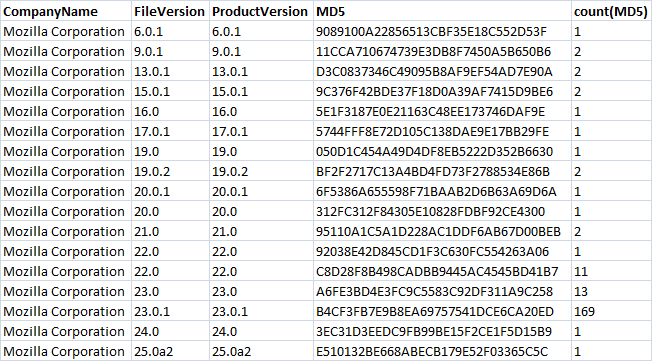
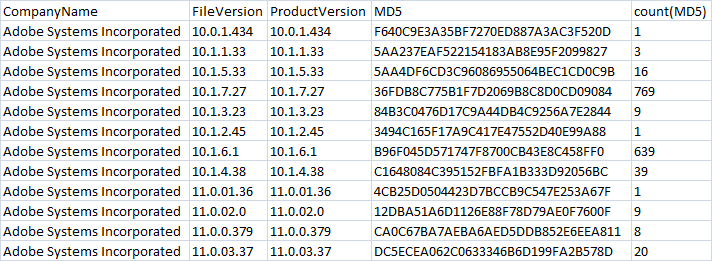
While initially intended to aid in detecting malware, the data WLS provides has many other uses. One that we use is to track software updates and outdated software being used on our network. In theory you could schedule a report similar to the ones below and automatically email people who are using incorrect software versions.
The search I used for the examples is shown below, and could easily be turned into a Splunk form where you can specify any BaseFileName for a quick report.
(EventID=4688 OR EventID=592) BaseFileName=firefox.exe | dedup host | stats count(MD5) by CompanyName, FileVersion, ProductVersion, MD5
Breakdown:
Example results!
firefox.exe
chrome.exe

iexplore.exe

acrord32.exe
java.exe
Too embarrassing to post 😦
Have other ideas for using the data WLS provides? Let me know in the comments below or via the contact form.
If you’d like more information on WLS, send me a note via the contact form. WLS is currently available to US entities, but does require a signed license agreement.



 digirati82